
1 - Login:
Visit business.facebook.com with your credentials.
Login needs to be with facebook for the API connection. If you only have an instagram login you can connect with it, we'll add a facebook login at a later stage.
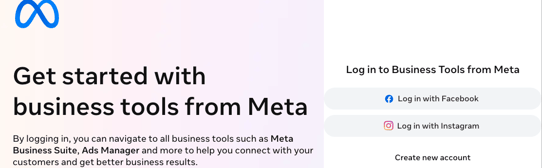
If you don't have a Meta Business Portfolio yet, create one following Meta's suggested flow.
⚠️ Please do not create a fake facebook profile to set this up. Facebook easily flags those profiles as scam and it might shortly after creation block your portfolio.
If you'd like to add your company email as a login option instead of your personal facebook login use this doc: How to add your company email as a Facebook login.
2 - Business Portfolio
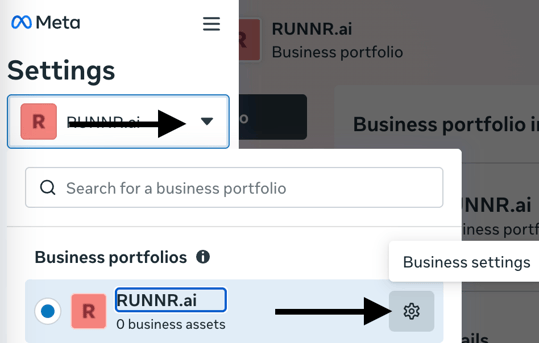
Select from the dropdown the portfolio that belongs to the company we're connecting to the WhatsApp API.
Then click the settings cog wheel:
⚠️ As long as you only work with the legal information of a single unique company, you need only one Business Portfolio.
- Multiple phone numbers can be connected to the same portfolio.
- All information set on the portfolio is internal for Meta.
- Meta runs automatic checks on the data you fill in to identify you and to verify you are rightfully representing your company. Therefore it is important that the legal information is exactly correct. Guests will not necesserily see this info.
- The information on pages are visible externally, we will touch on pages later on this doc.
3 - Business info
This section covers authenticating the legality of your company. The helps Meta to prevent scams or impersonating of your company.
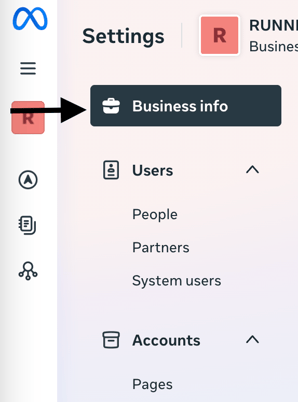
Once on you clicked the setting gear a new menu appears. Please click Business info: 💼
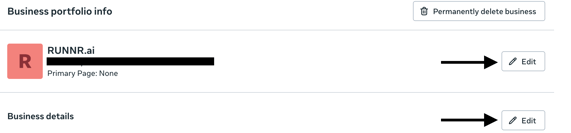
Add the information to match exactly your company information as declared in the Chamber of Commerce ("Kamer van Koophandel" for Dutch companies)
Please edit both the "title" and "business details" to show your legal name and company legal information.
⚠️ If you have an umbrella company or this accommodation belongs to a holding, then please add the details from the holding instead of the accommodation.
-
Meta only recognizes the main holding even when your accommodation has it own separate legal entity below it.
- Again, this information is only for Meta and is not shown to guests.
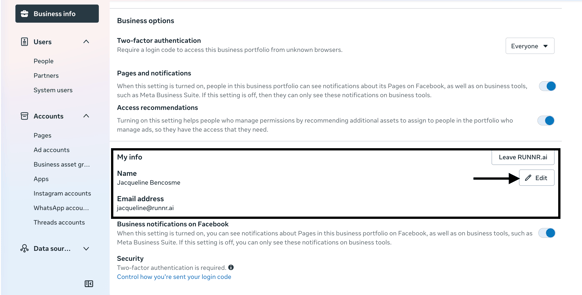
Final step in this section is to scroll down to the bottom to "My info". Click edit to add your name and email address if it is not filled in yet.
4- People
In this tab you see who has access to your portfolio. We recommend to have two people with "Full control" rights in your portfolio.
This is where you can add people:

The person responsible for the onboarding should now appear here and the logo next to their name should be facebook, not instagram. API setup can only be done when you have a facebook login.
⚠️ The added person needs to provide their personal facebook email or name used to login on their personal Facebook Page. Same as before, do not create a fake profile as it will trigger Meta' automated security measures. If you want to use a company email as Facebook login, see How to add your company email as a Facebook login.
5- Partners
We now delete inactive partners and prepare for migration in case there is a currently active API.
For inactive partners, click on the cross on top of the partner and then on "Remove from business portfolio":
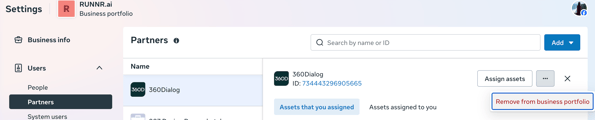
⚠️ Do not delete currently active partners connected to a WhatsApp number, we will do a migration of the number for these cases at the time of the onboarding.
6- Pages
Go to Pages to add all pages that belong to the portfolio. You can also add new owners of this page using the search bar (pointed out on the third arrow):
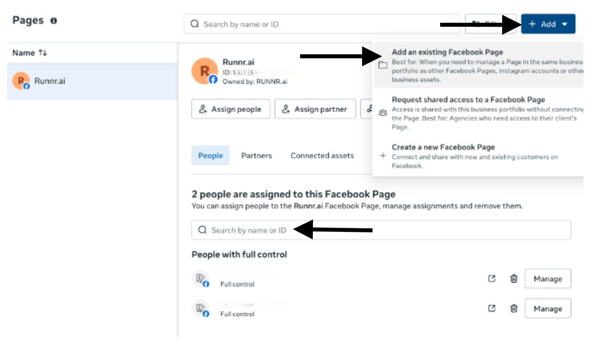
⚠️ If you do not add all pages, the person that owns the page that is not added should give full control to you to be able to transfer the page (here how to). The goal is that everything related to your company is in the same Business Portfolio. Meta recognizes you as the sole owner this way and allows you to verify your company.
7 - WhatsApp Account
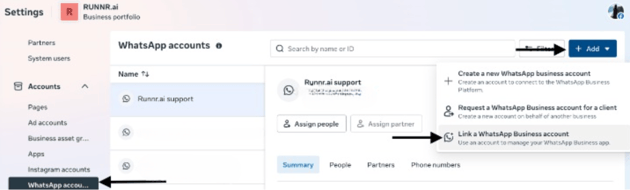
If your staff is currently using the WhatsApp Business App to talk to your guests you need to add the business app as follows:
Next add the payment method by following step three in this doc.
If your staff is not currently using the Business app to talk to your guests, the API connection is enough . The WhatsApp profile will be auto-created when we will complete the setup and billing details will be added in the next and final step.
The API connection does not required a mobile phone to connect to WhatsApp. That means that your regular local phone will work with the API.
⚠️ Turn off the answering machine, menu or IVR during our WhatsApp onboarding call. During the onboarding we will send a 6 digits code to the phone number we will link to your WhatsApp for Business account. If there's an answering machine, menu or IVR attached to the phone then the code would be given to the answer machine and we will not be able to verify the number.
8. Finance &Billing
The option to add your credit card will appear after the onboarding with the Runnr.ai Team is completed. We'll follow the steps to the ones written of How to add payment method in Meta.