
Setting up a personal Whatsapp number takes a few steps.
We will go through this together on a call with your Customer Success Manager (CSM), as the process is strict on the Meta side, and mistakes could lead to major delays or even ban on WhatsApp if not done correctly.
1. The Preparations
- Admin rights for your property’s Facebook Business Portfolio. Check you can login at business.facebook.com.
- Make sure you prepare the number you would like to use for the WhatsApp communication.
- This can be a landline number, which we recommend to use when is the hotel main contact number.
- During setup the number needs to be able to receive a code, so (temporarily) switch off any answering machine that is connected to this number. A text message is also possible if you use a mobile number.
- If you already use a Whatsapp for Business app, let us know, as this can influence the setup.
2. The Meta Setup
- We are going to set up the Business Account to make you a verified Business on Meta. This also gives you the opportunity to send customised templates from the Guest Journey Builder.
- First we go to the Business Information to make sure all the business information is filled out. This makes the verification process later in the process a bit easier.
- To check whether you are already verified: go to the Security Center.
- If you are already verified: ✅ great!
- If not: don't worry, verification can be completed later
- If you see any important notifications on this page, make sure they get resolved first.
3. The Runnr.ai Setup
- Runnr.ai CSM removes the Virtual Assistant from your account.
- Go to Messaging channels in Runnr.ai
- Click Meta direct: Set-up WhatsApp Channel (blue button)
4. Connecting Runnr.ai to Meta
- Confirm your name as admin of the Facebook portfolio and click Next.
- Next you will see a page that announces that you are going to connect to Runnr.ai. Click Continue.
- Then select the business portfolio that is going to be used. If you are a group with multiple hotel sharing the same business portfolio, this is possible.
- The next step is the creation of the newly used WhatsApp Business Account and Business Profile, or to connect the existing number used in a Whatsapp for Business app.
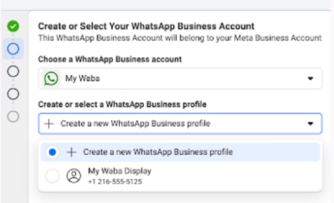
- Add the name that will show in your business portfolio for this number. This will not be guest-facing.
- Select the business category (usually: hotels and lodging).
- Add the country, website and timezone of the Hotel.
- Add the phone number and choose how to receive the confirmation code:
- Call (landline or mobile).
- SMS (mobile only) .
- If you are connecting an existing Whatsapp Business App, scan the code and follow the steps given by Meta.
- Enter the code and confirm.
- Now, the setup should be finished and redirect to Runnr.ai
⏱️ This can take somewhere between a few seconds and 5 minutes.
After this, set up payment for the messages in the Payment Settings. You will only pay for pro-active outgoing messages (from the Guest Journey Builder). This is currently limited to Creditcard only. After you have added the creditcard, make sure it is the "primary" payment method (by default it's the "alternative" payment method).
5. Extra WhatsApp options
- You can now verify your account if it has not been verified yet. This can be done in the Security Center.
- In the Whatsapp accounts setting within meta you can click "profile" to add or change display image.